Profiles - who you are when you create
A profile is the working identity Lolly creates as. It's the small set of details a tool can pull from so you don't retype them every time - your name, contact details, an optional headshot, a few preferences - plus everything you accumulate while you work: saved sessions, uploaded images, and the local activity tally.
Everything in a profile lives on the device, in the browser's local database (IndexedDB on the web PWA, the filesystem on the Tauri apps). There's no account and nothing is uploaded. You manage it under Profile (top-right of the gallery); tools only ever read it, and only the specific fields they were built to pre-fill.
A profile is about you (or whoever's creating here). It's distinct from the Platform - the brand's colours, fonts, and global settings - and from Capabilities, the catalogue of what the app can do. See Profile vs Platform vs Capabilities at the end.
What's in a profile
| Part | What it is |
|---|---|
| Name | First and last name. |
| Contact | Email and phone. |
| Location | City and country. |
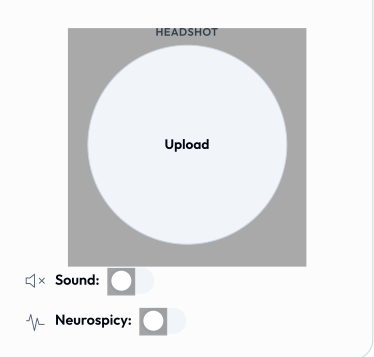
| Headshot | An optional photo, cropped to a square and kept as a local image. Used by tools like email signatures, quote cards, color blocks, and dynamic layouts. |
| Use my details | A single opt-in switch. It controls whether your personal details ride along as provenance - the author/credit line embedded in exported files - and as the author on /pro batch runs. (It doesn't gate pre-fill: see How tools use your profile.) |
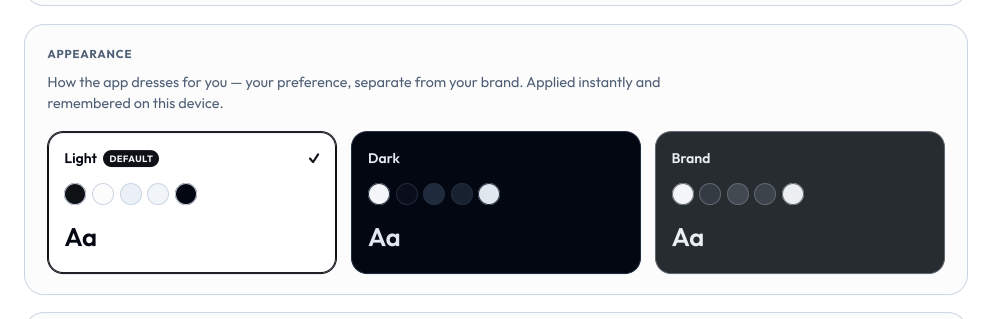
| Preferences | Your theme (light, dark, or SUSE) and which parts of the app you've enabled via Feature flags. |
| Your work | Saved sessions (with thumbnails) - organised into nested folders in Projects - your My images library, and the local activity stats, all keyed to this profile. |
None of this is required. A blank profile is a perfectly good profile; you fill in only what saves you typing.
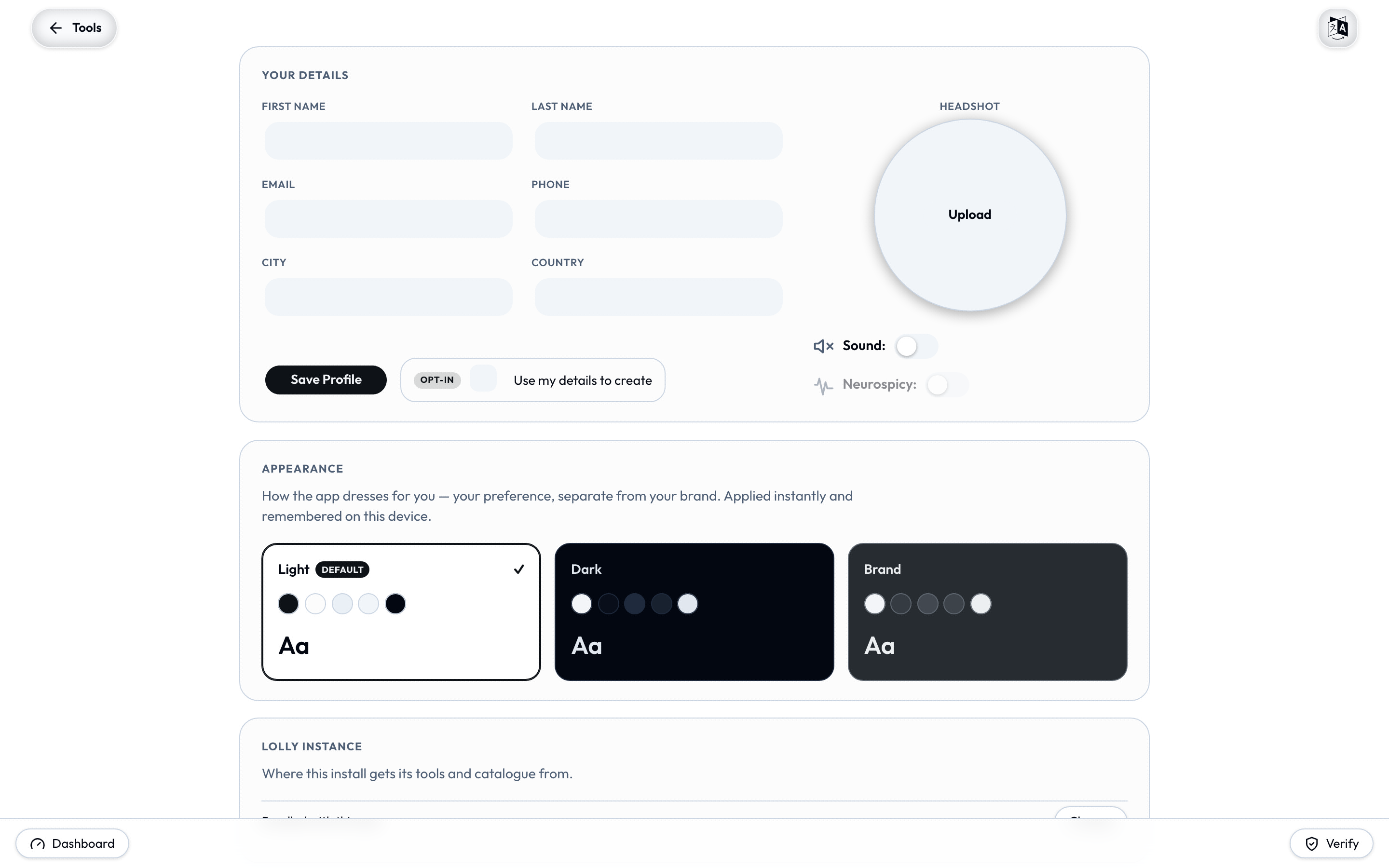
Preferences are the one part that changes how the app looks back at you. The theme cards are live previews and apply the moment you pick one, on this device only.
A profile is a context, not just a person
The word "profile" suggests one fixed person, but in Lolly it's really a creating context - who you are while you make this thing. That context can be three different shapes, and Lolly handles all of them the same way.
As an individual
The default. The profile is you: your name, your email, your headshot. Set it once and your signature, your badge, your conference lockup all fill themselves in. This is what most people will ever need.
As a team
A profile doesn't have to be a single human. It can stand in for a team or function within an org: the team's shared name, a group inbox address (events@…), a department, the team's headshot or unit mark. One person sets it up, exports it (see below), and the rest of the team loads the same profile - so everything the team produces carries consistent details without anyone re-entering them. A shared kiosk or a checked-out demo laptop can run a single team profile that everyone behind it creates as.
As a function - a role you wear sometimes
This is the case the rigid "one person, one profile" model misses. You might be an event manager three days a year and something else entirely the rest of the time. Those three days you want event details, the event inbox, maybe an event sub-brand to fill in your badges and signage; the other 362 you want your normal identity back.
In Lolly, that role is just another profile you keep on hand - a saved bundle (next section) you load for the event and set aside afterwards. The role is a hat, not a new account. Wear it when you need it, take it off when you're done.
One install, one active profile - many you can keep
At any moment an install has one active profile - the details a tool sees right now. There's no in-app profile switcher; instead, each profile is a portable bundle (a single .zip, see below). That's deliberately the same mechanism as moving to a new device - a profile is a file you can save, copy, and load.
So if you genuinely juggle several contexts (you, your team, the event-manager hat), you keep several bundles and load the one you need:
- Cleanest switch: Profile → Storage → Clear all my data, then Import the bundle for the context you're stepping into. You're now creating purely as that profile.
- Layering: importing without clearing first merges - the imported profile, sessions, and images land on top of what's already there, replacing anything with the same name and leaving the rest. Handy for pulling one team's saved sessions into your own setup; not what you want if you need a clean role boundary.
- Side by side: because everything is device-scoped, a separate browser profile, a separate user account, or a second installed PWA each carries its own independent Lolly profile. Run your personal install and the event kiosk install at once, no switching.
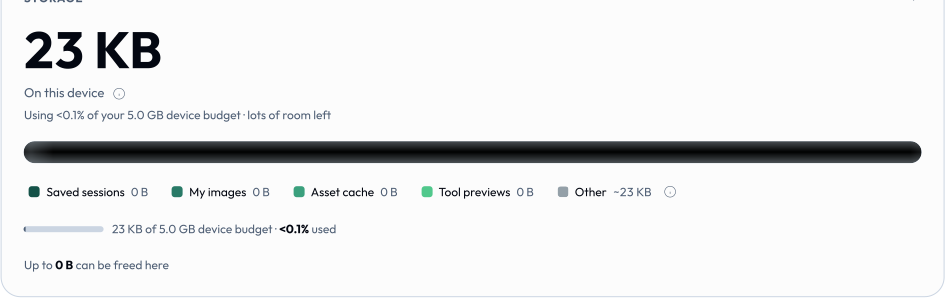
Storage is where both halves of that live: the meter accounts for every byte this install is holding, category by category, and the buttons under it are how you clear or carry it.
Keep a bundle per context and rename the files for what they are (
LollyTools-events-2026.zip,LollyTools-me.zip). The file is the profile.
Moving a profile to a new device
Because a profile is entirely local, the only way to get it onto a blank install - a new laptop, a freshly reset browser, a colleague's machine, an offline box - is to carry the file. No login restores it for you, and that's the point: nothing ever left your device to begin with.
Under Profile → Storage → Move to another device:
- Export my data downloads one
LollyTools-<First>-<Last>-<YYYY-MM-DD>-<n>.zip- named for the profile it belongs to, with a per-day sequence number so repeat exports don't collide (name parts are dropped when the profile doesn't have them). It contains your profile, every saved session (with its thumbnail), your uploaded images, and your preferences (theme, layout, local activity stats). - Import data… on the other install reads that file back in and you pick up exactly where you left off.
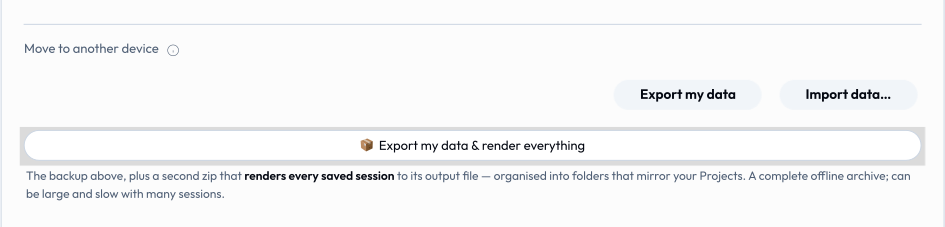
The bundle is a plain, self-contained zip, so it travels by any means - USB, AirDrop, a network share, email-to-yourself - and the target can be completely offline. Each part is checksummed, so a file damaged in transit is caught on import rather than restored half-broken. Import merges (same-named profile/session/image is overwritten; everything else is kept), so it never wipes a target that was already in use.
What doesn't travel: the catalogue cache (it re-downloads itself on the new device) and the tools themselves (assumed already present).
For the exact bundle layout, version policy, and integrity rules, see Data Transfer; for the end-to-end walkthrough, Using Lolly → Moving to another device.
How tools use your profile
A tool only ever pre-fills the profile fields it was explicitly built to bind:
Explicit binding. A tool author marks an input as drawing from the profile (bindToProfile: "firstname", "email", "headshot", …). When the tool opens, that input pre-fills from your profile - and you can still override it for that one session without changing the profile. Pre-fill is a local convenience and happens whether or not Use my details is on.
The opt-in (provenance). When you export an asset, your details optionally ride along as provenance - an author/credit line embedded in the file's metadata (PNG, PDF, SVG, …) - so a finished asset can say who made it. This is what Use my details governs: leave it off and the export still carries the "Made with Lolly" tool/platform attribution, but no personal author/contact line is embedded. (The same opt-in sets the author on /pro batch runs.) (Tool authors: see Authoring Tools → bindToProfile and Host API → host.profile.)
Profile vs Platform vs Capabilities
Three things sit near each other in the UI and are easy to confuse:
- Profile - you (or your team, or the role you're in): name, contact, headshot, your saved work. Personal, device-local, portable as a bundle.
- Platform - the brand: colours, fonts, and global settings every tool renders against. Shared and consistent, not personal.
- Capabilities - what the app can do: the full feature set and the tools available to you.
A profile changes who an asset is from; the platform changes what it looks like; capabilities are what you can make.
"Profile" means two other things elsewhere - not this one
The word is overloaded across the project. Neither of these is the personal profile this page is about:
- Content profile - a build-time configuration in
profiles.jsonthat binds a set of tool packs to a brand catalog (e.g.suse,lolly-start). It's what an operator picks when deploying, and it's what theprofileURL/CLI parameter also selects a colour variant of at export time (the ICC/CMYK press condition - see URL Mode). Both are about the build/output, not about you. See Configuration. - Identity profile - the optional verified Content Credentials identity you can enrol (a short-lived certificate that ties your email to your signed exports). That's a signing identity, separate from the personal profile's name/contact fields, though Use my details governs whether either is embedded. See Content Credentials Identity.
Privacy
A profile is never transmitted, uploaded, or used to identify or track you - there's nothing to consent to, only this notice so you know what's kept. Wipe all of it at any time with Profile → Clear all my data. See the Privacy Policy.