Exporting & Formats
How to get a finished file out of a tool - picking the right format, setting the output size, and what each option does. Like everything else, export happens on your device; nothing is uploaded.
How export works
The preview is the file. When you export, the host renders that canvas to the format you chose and hands you a download (or puts it on your clipboard). A tool only offers the formats its author declared, and the picker hides any your browser can't produce (see Video).
Three paths produce a file. Most tools render the canvas to the chosen format. Text and data formats (HTML, MD, TXT, JSON, CSV, ICS, VCF) are instead generated from the tool's content, not rasterised from the picture. And privacy utilities (e.g. Strip Hidden Data) use a third path: the file you pick is transformed byte-for-byte on device and handed straight back - no canvas, no watermark, and no provenance metadata added, because it's already your own file.
The actions in the export controls:
- Download - save the file (the primary action).
- Copy - put the image on your clipboard to paste straight into Slack, email, a doc. Where a browser can't copy images, it downloads instead and tells you.
- Save - keep the current design as a saved tool session in your library.
- Share - opens the Share dialog: a copyable link that reproduces the design, on-visit toggles (fullscreen, export panel, download- or copy-on-open), and an optional Shortest link that packs the whole state into a compact token (see URL Mode).
(A tool's author picks which of these appear; the default set is Copy, Download, and Save.)
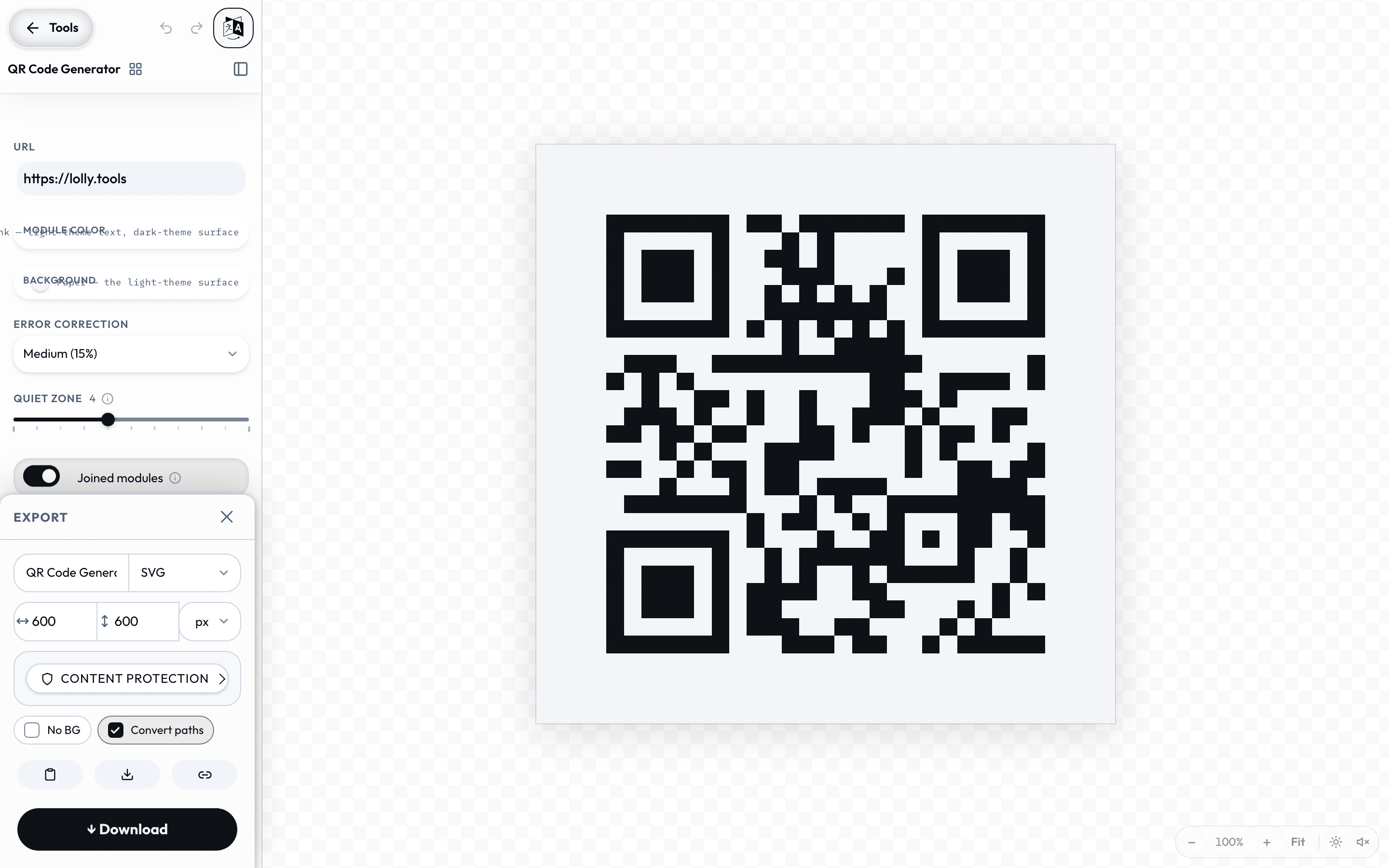
Share opens over the tool, with the link already built and the on-visit toggles under it.
Rendering many at once
A single export is one file, but you can render many in one pass - each delivered as one .zip:
- Projects → Render folder exports every saved session in a folder (and its sub-folders) as one nested zip; Render selection does the same for any multi-selection; a single saved session renders straight to its own file. No Batch/Pro needed - see Using Lolly → Projects.
- Batch (Pro) renders a grid of input sets - every variant of one template at once.
A saved session can also be re-shared as a tool link from Projects (it reconstructs the tool URL from the saved inputs), so a link reopens it with the exact same settings.
Choosing a format
The filename and the format picker sit at the top of the panel as one name.format pair, and the picker lists only the formats this tool's author declared.
| You want… | Use | Why |
|---|---|---|
| Crisp logos / artwork that scales | SVG | Vector - infinitely scalable, tiny, editable |
| Vector for Office / Windows apps | EMF | Pastes as editable vector into PowerPoint / Word |
| Vector for print / design apps | EPS, or EPS (CMYK) | PostScript vector for Illustrator / press workflows |
| Vector for cutting / CAD machines | DXF | Laser cutters, vinyl plotters, CNC - outline paths in millimetres |
| An editable slide deck | PowerPoint (PPTX) | Native editable text + shapes, with images and vectors kept extractable |
| A photo or general-purpose image | PNG (lossless) or JPG (smaller) | Universal raster |
| Smaller modern images | WebP / AVIF | Better compression, alpha |
| PDF, or Print PDF (CMYK) | True page size; CMYK for press | |
| Print raster for a press | Print TIFF (CMYK) | DeviceCMYK pixels for a RIP |
| Animated for the web | GIF | Works everywhere, larger files |
| Animated with full colour + real alpha | APNG | Animated PNG - no palette limit, true transparency |
| Animated, smallest file | Animated WebP | Full colour + alpha, better-compressed than GIF or APNG |
| Animated vector that scales | Animated SVG | Self-contained; loops in a browser or <img>, no codec, any size |
| Video for social / sharing | MP4 or WebM | Best quality-per-byte (see below) |
| Rich text / email signature | HTML | Pastes formatted into mail clients |
| Plain content | MD / TXT | Text only |
| A calendar event | ICS | Imports into any calendar app |
| A contact card | VCF | Imports into Contacts / address books |
| Structured data to re-import | JSON / CSV | Round-trips the tool's content |
| A favicon | ICO | Multi-size site icon (ZIP bundles several formats) |
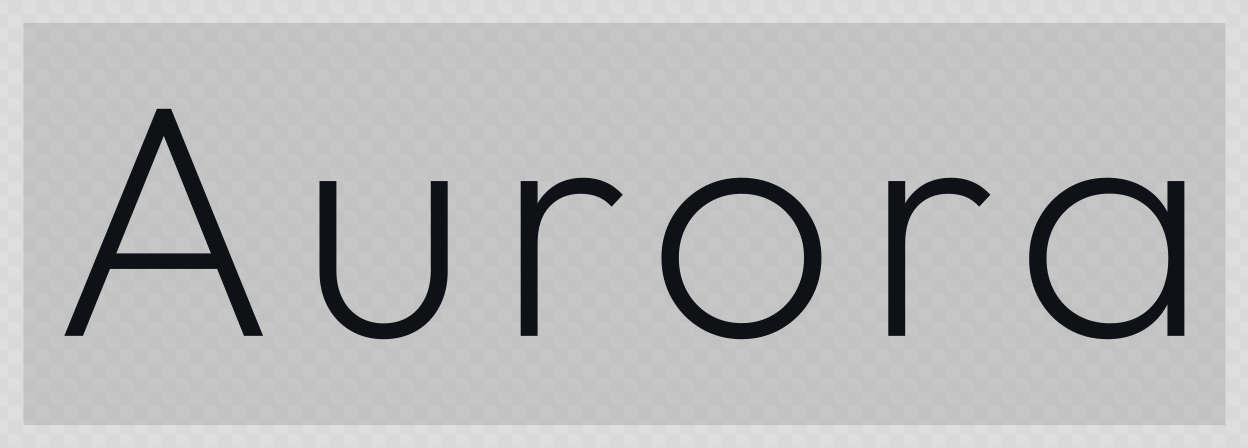
The first row is the common case. A wordmark set in your brand face exports as SVG, where every letter is an outlined path rather than a pixel, so it stays crisp at a business-card size and at a building-wrap size from the same file.
Size & print units
By default exports use the tool's native pixel size. Where a tool exposes dimensions, you can set width × height and a unit:
- px (default) - exact pixels.
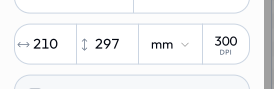
- mm · cm · in · pt · pc - physical/print sizes. With a physical unit you also set DPI (default 300 for print); the engine converts correctly per format - PDF becomes a true page at that size, raster renders at the right pixel count for the DPI (and embeds the resolution), SVG keeps the physical unit with a px viewBox.
To get a higher-resolution raster, enter a larger width/height, or choose a physical unit and raise the DPI (pixels = size × DPI). There's no one-click scale toggle.
Example: width 210, height 297, unit mm → an A4 page.
Multi-page PDF
Some tools build a multi-page PDF document instead of a single artwork - a cover, content that flows onto as many pages as it needs, and a back page, all in one file (see the Multi-Page PDF tool). Each page is a true PDF page sized to that page's box, so readers and printers get real pages, not one tall image.
- Pages from content. Add blocks of text and images; new pages are created automatically as the blocks fill, and you can force any block to start a new page.
- Real page sizes. Choose A4, US Letter or A5, portrait or landscape - every page, and the exported PDF, renders at exactly that size.
Multi-page PDFs are RGB documents and don't carry crop/bleed marks - those belong to the single-page Print PDF path above. They do carry the same PDF/X-4 metadata as every PDF export (page boxes, XMP, document ID, an sRGB output intent with embedded profile), and they offer Content Credentials (below) - on the Multi-Page PDF tool the option comes pre-selected.
PowerPoint (PPTX)
Multi-page and layout tools (Carousel, Doc Studio, Multi-Page PDF, the chart tools, and the single-canvas card/layout tools) can export a PowerPoint deck - one slide per page. The point isn't a pixel-perfect screenshot; it's to hand a colleague a deck they can actually edit and take assets out of. So each page is decomposed into native objects:
- Text becomes real, editable PowerPoint text boxes - with the font size, colour, weight, italics and alignment from the layout - so you can fix a typo or restyle in PowerPoint.
- Vectors (logos, icons, the SUSE mark) are embedded as real SVG pictures - they stay crisp at any size, and PowerPoint can even Convert to Shape on them.
- Images come through at their native resolution as their own extractable pictures (a
cover-cropped hero keeps the full image behind the crop, so you can re-frame it), with any on-image treatment (filters, blends) baked in faithfully. - Backgrounds, borders and rules become real rectangle/line shapes.
Layout is approximate by design - the goal is faithful, reusable content, not a locked screenshot. Anything the walker can't express natively (a complex filtered or masked region) is embedded as a picture so nothing is lost. A deck has a single slide size, taken from the first page.
PowerPoint is also a way in - the format round-trips. Deck Builder opens an existing .pptx as editable slides, snapped to your brand, and the Rebrand a Deck utility re-themes a deck in place - theme palette, hardcoded colours and fonts - without touching its charts, SmartArt or animations, handing back a .pptx. See Import a design → Decks and documents.
DXF (cut files)
Vector tools (Brand Lockup, QR Code, Street Map, Wayfinding Signage, Pose Geeko, the logo lockups, Diagram Builder) can export DXF - the AutoCAD R12 interchange format that laser cutters, vinyl plotters and CNC/CAD software read. Geometry is written as outline paths in millimetres (curves flattened to a fine tolerance), text is outlined to paths, and colour lands as the nearest AutoCAD Color Index (which typically drives the tool/operation on a cutter). DXF is line-art only - a photographic or filtered region has no cut-path form and is dropped (Lolly warns), so use SVG/PDF when you need to keep raster content.
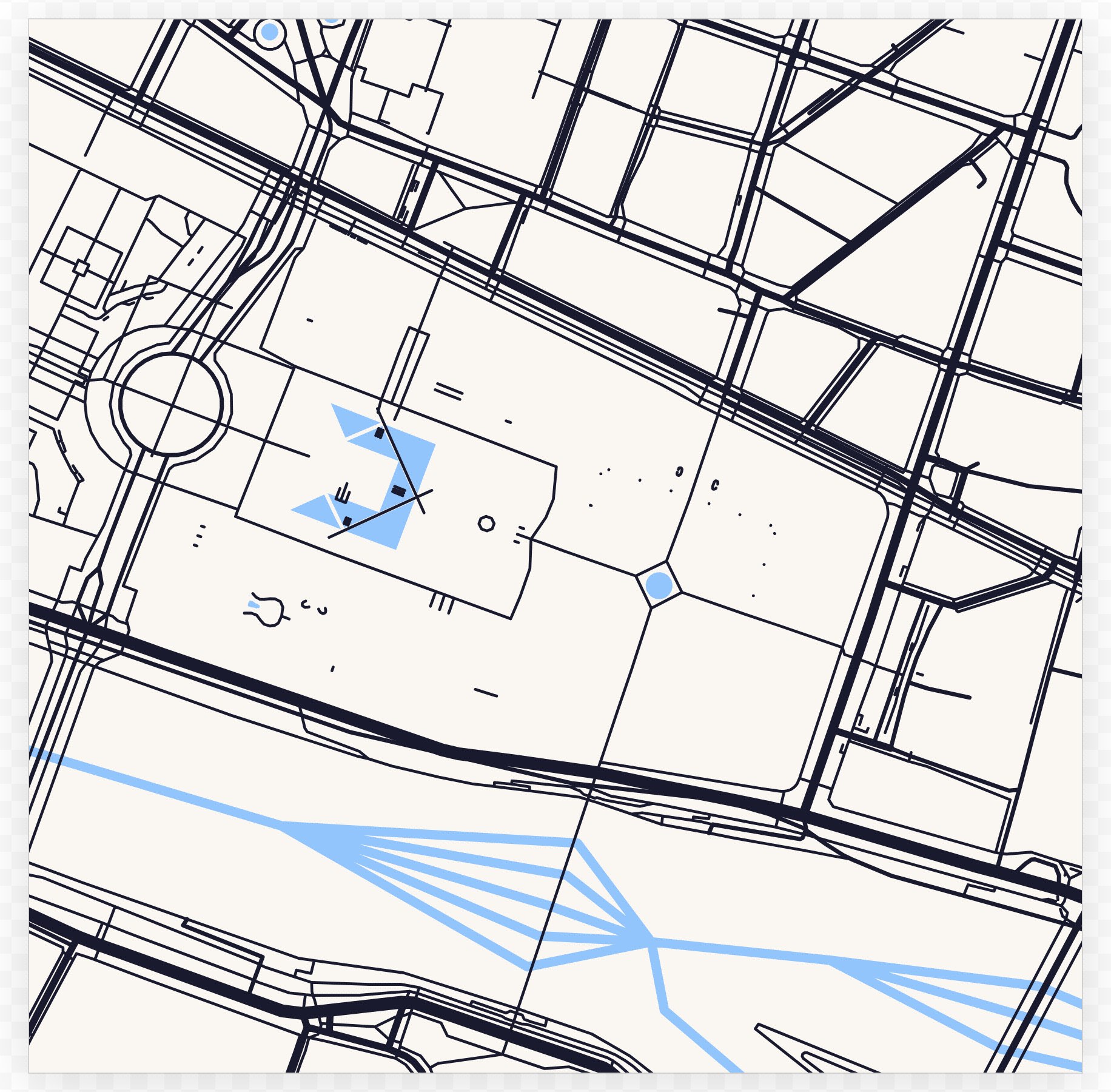
Street Map is the clearest case: the whole design is already strokes, so every road and canal becomes a cut path with nothing to drop.
Animated SVG
Motion tools (Animated Ad, Lottie Ad, Bag Video) can export Animated SVG - a self-contained, vector animation. Unlike GIF/APNG/WebP (which sample each frame to pixels), an animated SVG stacks vector snapshots with embedded CSS keyframes, so it scales to any size with no codec and no external runtime - it loops in a browser tab or an <img>. Text stays outlined so it renders anywhere. It shares the animated formats' Duration / frame-rate controls, and (being heavier per frame than a bitmap) uses a lower default frame rate.
Transparency
Tools that support it offer a transparent background toggle (e.g. No BG). Transparency is preserved by PNG, WebP, AVIF, SVG (still and animated), APNG and Animated WebP. JPG and PDF are always opaque.
Colour profiles
So colours reproduce faithfully in colour-managed apps (print shops, Photoshop, browsers), exports are tagged with a colour profile:
- PNG / JPG carry an embedded sRGB ICC profile - the colour space the preview is actually rendered in - so nothing is left to guess. (Tagging only; the pixels aren't re-encoded.)
- Print PDF (CMYK) declares a target press condition in its OutputIntent (default Coated FOGRA39), telling a RIP/print shop how its CMYK inks are meant to be read. Brand swatches with measured ink values are converted exactly; other colours use a standard device conversion.
- Print TIFF (CMYK) writes untagged DeviceCMYK pixels and records the same press condition as provenance in its TIFF metadata (ImageDescription) rather than embedding a profile. The same Colour-profile control drives both CMYK formats.
- TIFF (RGB) is the plain, uncompressed sRGB sibling - a lossless raster at the chosen DPI for archival or an editor round-trip, with provenance recorded in the same TIFF metadata. Any transparency is flattened onto white (this profile carries no alpha). Like the CMYK TIFF it's desktop-only, since browsers can't preview a TIFF and mobile downloads dead-end.
- SVG, EMF, EPS and DXF are resolution- and profile-independent vectors with no embedded profile - SVG's colours are plain sRGB, EMF's and EPS's are device RGB (and EPS (CMYK) writes naive DeviceCMYK), and DXF carries the nearest AutoCAD Color Index. (All, like PDF, outline any text to vector paths, so the result renders even where the font isn't installed.) SVG also reproduces CSS
box-shadowfrom the HTML - each outer shadow is painted behind the box, offset/spread and Gaussian-blurred to match the browser (inset shadows are skipped).
This is automatic - no setting to fiddle with. Thumbnails and previews skip the tag to stay small.
Video
Animated tools export motion as MP4, WebM, or GIF - and, where offered, APNG, Animated WebP or the vector Animated SVG (above). Which video container you see depends on your browser - the picker only shows what it can actually record:
| Browser | Shows |
|---|---|
| Safari / iOS | MP4 |
| Firefox | WebM |
| Chrome / Edge 126+ / Android | MP4 and WebM |
| Older Chrome | WebM |
GIF works everywhere (great for chat/email; larger and lower-colour than video). Animated tools also expose Wait (seconds to let the animation settle before recording) and Duration (clip length).
A shared
?format=…link that requests a container your browser can't record gracefully falls back to the other and names the file accordingly.
Sound. Video exports aren't silent. A tool can lay a music bed under the clip - an audio asset from the catalogue, looped or trimmed to the clip length, with fade-in/out, volume, and automatic ducking under the footage's own sound - and the recording tools carry their footage's live audio straight through to the file. MP4 and WebM keep the mixed track; GIF and the animated image formats (APNG, Animated WebP, Animated SVG) are silent by nature.
Audio
Some tools export audio on its own, not just as a video track. The Voice Recorder captures a mic take with a live level meter and gentle coaching, then saves it as MP3 (the default, transcoded in your browser) or in its native container - M4A (AAC), OGG or WebM (Opus), whichever your browser recorded. As with everything else, the encode happens on your device - nothing is uploaded.
Audio you bring in is just as broad. The asset picker accepts MP3, WAV, OGG/Opus, M4A/AAC and FLAC (kept byte-for-byte and decoded on-device), MIDI (.mid - converted on import to a tiny on-device synth track), and tracker modules - MOD, XM, IT, S3M, STM, MTM (decoded on-device by a bundled player, a few kilobytes of song data). Any of these can become the music bed under a video export, or play in Neurospicy Mode's ambient player.
Audio isn't part of the format= / --export= pipeline below - it comes out of the recording tools' capture flow, so it isn't a shareable-link format id.
Provenance & watermark
Where the format supports it, exports carry provenance metadata - software, source, the tool's name, and your profile credit line - embedded natively (PNG iTXt, JPEG EXIF, PDF info, SVG <metadata>, GIF comment). It's authorship only; nothing is uploaded. Experimental tools additionally stamp a visible watermark, applied by the host so it can't be removed by editing the tool.
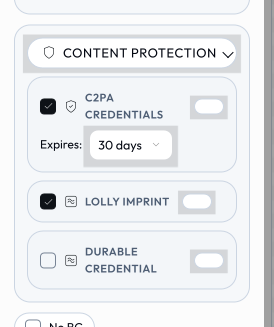
The Lolly Imprint. Raster exports also carry Lolly's own invisible pixel watermark - the Lolly Imprint - on by default, just like Content Credentials. Where the credential and the provenance metadata travel alongside the pixels and are lost to a re-save, a screenshot, or a metadata strip, the Imprint lives in the pixels and survives recompression - so a copy of the image can still be recognised as Lolly-made later. It's a durable hint, not a cryptographic guarantee, and it's presence-only (it carries no personal data). It rides in PNG, JPG, WebP, AVIF and TIFF, and in the Lolly-rendered rasters composited into a PDF or PPTX - never in an image you embedded, only in what Lolly itself renders. Uncheck the Lolly Imprint card in the export panel to skip it, or pass imprint=0 in a share link. (AVIF survival through re-encoding isn't calibrated yet; PDF/PPTX detection covers the embedded Lolly rasters.) /verify detects it on-device - see Content Credentials Identity.
Content protection. In the export panel, Password protect, Content Credentials, the Lolly Imprint and print marks fold into one collapsed, format-aware Content protection group, so all of a file's provenance and protection options live in one place - the group shows only the cards that apply to the chosen format.
Composed renders. When a tool embeds another tool's output (e.g. an Event Name Badge embedding a QR Code), the nested render is inlined into the parent's export - it stays a true vector in SVG and PDF and rasterises crisply in PNG/JPG/WebP. The embedded child is an intermediate: it gets no watermark and no provenance of its own; only the finished parent asset does. (Composition covers SVG and the raster formats; HTML/MD/TXT can't be composed.)
Password protection
Two independent kinds of lock, both entirely on-device.
PDF open-password - the export panel's Password protect card offers two tiers:
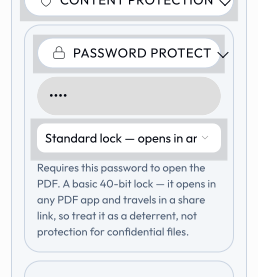
- Standard - a basic 40-bit lock (RC4). It opens in any PDF app, and - being a light deterrent, not real protection - it can travel in a share link (clear-text, by design). RGB
pdfonly. - Strong - AES-256 (PDF 2.0). Its password is typed at export and is never put in a link; it opens only in newer PDF apps (Acrobat / Preview ~2018 on), and older apps may report the file as damaged. Strong also applies to Print / CMYK PDFs and to each PDF inside a batch zip (the batch confirm dialog collects the password). Because PDF/X-4 forbids encryption, a Strong-locked Print PDF keeps its CMYK, marks and output-intent but drops the PDF/X-4 conformance claim.
Either tier is mutually exclusive with Content Credentials (an encrypted PDF can't take the credential).
Locked downloads (whole-zip + defense-in-depth) - a ZIP export (the export panel's ZIP format, which bundles several of a tool's formats), a folder download (Projects → Download), or the batch grid can lock the entire zip with one password, at two tiers:
- Standard - traditional ZipCrypto: opens in any unzip tool including Windows Explorer's built-in extract, but weak (a deterrent). Its password can travel in a
?password=share link. - Strong - AES-256 (WinZip AE-2): strong, but does not open in Windows Explorer's built-in extract - the recipient needs 7-Zip / WinZip / Keka / macOS. Typed at export, never put in a link.
The same Password protect card in the export panel drives both the PDF and ZIP locks, rewording itself for the chosen format. The one password protects every member - images, SVG, everything, not just PDFs (only the zip container can protect non-PDF files, which have no lock of their own). And it's defense-in-depth: any PDF inside is also individually AES-256-locked with the same password, so a PDF stays locked even after the zip is unpacked. The prompt appears when you start the download; a blank password means no lock.
Password-gated share links - any share link can be encrypted so that opening it asks the recipient for a password. The whole link state is AES-256-encrypted under a key derived from the password (PBKDF2); only ciphertext travels, so the password is never in the link, and decryption happens in the recipient's browser - nothing is sent to a server. Turn it on in the Share dialog. An encrypted link can only be opened in Lolly (it can't be embedded as an image, since that path can't prompt). See URL Mode → Encrypted links.
Content Credentials (C2PA)
Exports can carry Content Credentials - a signed C2PA manifest embedded in the file that records, in a tamper-evident way, that the file was made with Lolly and hasn't been altered since. It's the standards-track version of the provenance metadata above: a cryptographic claim (what made the file, when, by whom, and where) bound to a hash of the file's bytes, so any later edit is detectable by a C2PA-aware viewer. The standard is stewarded by the Content Authenticity Initiative (Adobe, BBC, Microsoft, Nikon and others), so the same credentials Lolly writes are the ones cameras, newsrooms and creative suites are adopting.
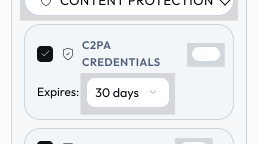
- Formats. Every container with a C2PA embedding: PDF (both RGB and Print), PNG / Animated PNG, JPG, GIF, SVG, TIFF (RGB and Print), WebP (still and animated) MP4 and WebM. A ZIP bundle stamps each supported member individually. MP4 uses the spec's BMFF binding, so
c2patooland other C2PA-aware viewers verify it; WebM has no standardised C2PA mapping yet, so Lolly carries the manifest as a Matroska attachment that Lolly's own verifier (and CLI) checks. (avifand Animated SVG are not yet stamped;ico,eps,emf,dxf,pptxand the text/data formats have no C2PA container.) - On by default. The Content Credentials card in the export panel comes pre-selected for nearly every tool - untick it to skip the credential on a single export (or pass
c2pa=offin a share link). A tool can opt out entirely in its manifest. - What it records. The tool and app that made the file, the signing time, the export surface (browser engine family + OS family - coarse on purpose, never a fingerprint), and - only when Profile → Use my details is on - your name and email as the work's author.
- What recipients see. Inspect-content-credentials tools (Adobe apps,
c2patool, contentcredentials.org/verify) will read the manifest and show the claim. Because Lolly signs with a key generated on your device - not a certificate from a trust list - viewers report it as an unverified credential. The structure and the tamper-evidence are real; the signer identity is simply not vouched for by an authority. To upgrade that, you can enrol a verified identity (Profile → Content Credentials): a short-lived certificate from the Lolly CA ties your email to your exports while the signing key still never leaves your device - see Content Credentials Identity. - Checking a file. Lolly verifies its own credentials too: drop any file on /verify (or run
lolly validate <file>in the CLI) for an on-device report - headlined by whether the file was genuinely made with Lolly and unchanged since. The web Verify view reads well beyond the credential: it flags AI-generated content, detects the Lolly Imprint, checks SEAL signatures and (opt-in) third-party pixel watermarks, and surfaces hidden data - all on-device, nothing uploaded. See Content Credentials Identity → Beyond the credential. - Privacy. Everything happens on your device: the signing key is created for the export and never leaves the browser, nothing is uploaded, and the claim contains only what the provenance metadata already carries. Privacy utilities (on-device transforms of your own files) never add credentials, and Strip Hidden Data will remove a C2PA manifest like any other embedded metadata.
- Interactions. For PDFs, Content Credentials and password protection (either tier - see above) are mutually exclusive (an encrypted PDF can't take the credential attachment). The credential is added as the final step over the finished bytes - after DPI/EXIF/colour-profile stamping, PDF/X metadata, and print marks.
On a phone
The export controls live behind the floating Render button, which opens the Export sheet - same formats, size, copy, download, and share, sized for touch.
Format reference
png · jpg/jpeg · webp · avif · svg · svg-anim (Animated SVG) · emf · eps · eps-cmyk (EPS CMYK) · dxf (cut file) · pdf · pdf-cmyk (Print PDF) · cmyk-tiff (Print TIFF) · tiff (RGB TIFF) · pptx (PowerPoint) · html · md · txt · json · csv · ics · vcf · ico · zip · webm · mp4 · gif · apng (Animated PNG) · webp-anim (Animated WebP). These ids are also the values for the URL format= parameter and the CLI --export= flag - see URL Mode and CLI.